
Sync Shopify inventory with Google Sheets, per location
Syncline gives every Shopify location its own column in a Google Sheet. You edit the on-hand count for a location, and it is written to that location in Shopify — usually within seconds. When stock moves in Shopify, the same cell updates in the sheet.
Why one stock column is not enough
A spreadsheet with a single Stock column looks tidy until you have two locations. The number has to come from somewhere and go somewhere, and those are rarely the same place.
Reading a total across locations while writing to just one is the failure this design exists to prevent. Suppose a variant holds 50 units in a warehouse and 70 in a shop. A single column shows 120. Edit it to 120 — changing nothing — and the write lands on one location, which now holds 120 on its own. Total stock is 190. The next sync reads 190 and writes that back to the sheet, and the number that was never edited has grown by 70.
One column per location makes each number mean exactly one thing, and round-trip to the place it came from.
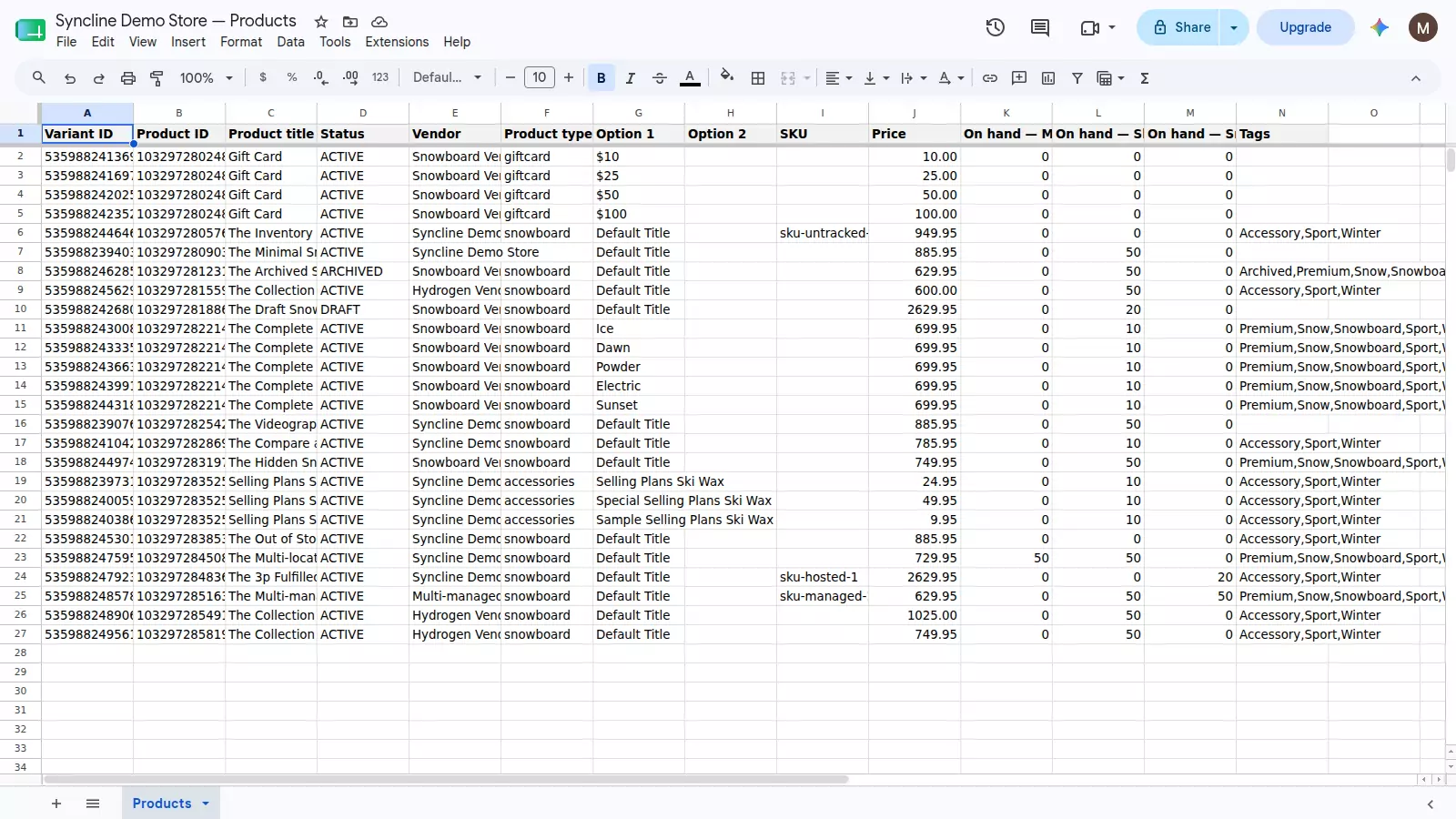
One stock column per location — never a single figure standing in for all of them.
On hand is the number to edit. Available is not.
Shopify tracks several quantity states per location. Two matter here:
- On hand — the physical count. It is a fact about the shelf and only changes when stock actually moves.
- Available — what Shopify considers sellable: on hand minus committed, reserved, damaged and the rest. It is derived.
Available moves on its own the moment a customer places an order, with nobody touching inventory. That makes it the wrong number to write back. Set available to 25 while one unit is committed to an unfulfilled order, and Shopify adjusts on hand to make the arithmetic hold — your physical count silently becomes 26.
So Syncline makes on-hand columns editable in both directions, and locks available to read-only. You can still show it; you just cannot write a calculated number back into the system that calculates it.
| Column | Behaviour |
|---|---|
| On hand — <location> | Two-way by default. This is the number to edit. |
| Available — <location> | Reads out of Shopify only. Calculated, so it cannot be written back safely. Off by default. |
Fulfilment-service locations
Locations run by a third party — a 3PL, a print-on-demand service — appear as columns like any other. Excluding them would be worse: a variant stocked only at a 3PL would get no column at all, and its quantity could never sync in either direction.
Shopify does accept writes to these locations, so Syncline allows them rather than blocking the column outright. The service normally owns that count, though, so the column says so — the decision is yours to make deliberately.
When both sides change the same number
Stock is the most contended data in a store: orders, returns and other apps all move it without warning. Before writing, Syncline compares against the quantity it last recorded. If that quantity moved in the meantime, the spreadsheet value is still applied — but the overwrite is written to an activity log with the value it replaced and a link straight to the affected row.
Inventory is tracked separately from the rest of the row for the same reason. Stock changes constantly and independently of content edits, so folding both into one comparison would make every sale look like a conflict with a pending price change.
Details that decide whether the numbers are right
- A blank cell means zero — specifically, "not stocked at this location". Clearing a cell and typing 0 are the same instruction, so the two cannot disagree.
- Deactivated stock levels are still read — a location whose level is deactivated reports differently from one holding nothing. Treating those as the same is how a location holding real stock ends up reading zero, and every later write is rejected as stale.
- Retired locations get no column — deactivated locations are excluded, because a column for a place you have closed is noise.
- Up to 50 locations are read per store.
What this does not do
Syncline syncs up to 500 variants, and it is free — there is no paid tier today. It updates the catalogue you already have: adding a new row to the spreadsheet does not create a product in Shopify. Products created in the Shopify admin do append to the sheet automatically.
Frequently asked questions
Can I sync Shopify inventory across multiple locations in one sheet?
Yes. Each location becomes its own column, so a single row shows stock at every location side by side. Syncline reads up to 50 active locations, including those hosted by a fulfilment service.
Should I edit on hand or available?
On hand. It is the physical count and only moves when stock moves. Available is calculated by Shopify as on hand minus committed, reserved and damaged units, so writing a stale copy of it back changes your physical stock as a side effect.
What happens if I leave an inventory cell blank?
A blank cell means not stocked at that location and is treated as zero. Clearing a cell and typing 0 are the same instruction.
Does this work with a 3PL or print-on-demand location?
Yes. Locations hosted by a fulfilment service get columns like any other, and Shopify accepts writes to them. The fulfilment service normally owns that count, so the column is labelled accordingly — edit it deliberately rather than by habit.
What if stock changes in Shopify while I am editing the sheet?
Syncline compares against the quantity it last saw before writing. If the number moved in the meantime, the spreadsheet value is still applied but the overwrite is recorded in the activity log with the previous value and a link to the row.
How many variants can Syncline sync?
Up to 500. Syncline is free and there is no paid tier today.
Getting started
Install Syncline from your Shopify admin and connect Google. It creates the spreadsheet, fills it with your catalogue, and adds a column for every location. Setup takes a couple of minutes.